
In my latest post, I talked about configuring PIM for groups with Entra ID roles. But access to groups, applications and roles change over time.
So, in this post, we are going to configure access reviews for groups with privileged roles. By doing so, we ensure users have the right continued access to a privileged group, and ensure inactive and stale users are removed.
Access reviews is a part of Microsoft’s 8 best practices to securing Entra ID roles. Despite being part of Microsoft’s best practices, access review audit is also a part of some of the major IT standards such as NIST, HIPAA, SOX, GDPR and PCI DSS.
Regular auditing your administrators is crucial due to following reasons:
1. A malicious actor can compromise an account
2. People move teams within a company. If there is no auditing, they can amass unnecessary access over time
Prerequisites
- Microsoft Entra ID P2 or Microsoft Entra ID Governance license
- Microsoft Entra ID Governance license is required for reviewing inactive users and for use-to-group affiliation
- For creating access reviews on privileged groups, you need to be either Global administrator or Privileged Role administrator
- Be Global administrator, User Administrator or Identity Governance administrator to create access reviews on normal groups and applications
Step 1 – Creating the access review
Go to https://entra.microsoft.com
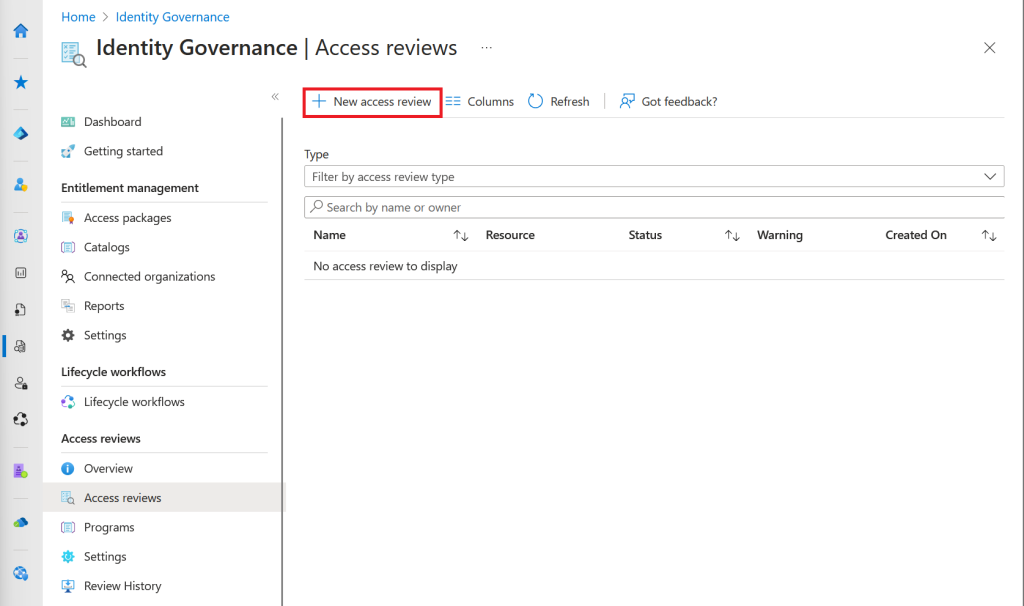
Navigate to Identity Governance/Access review/New access review
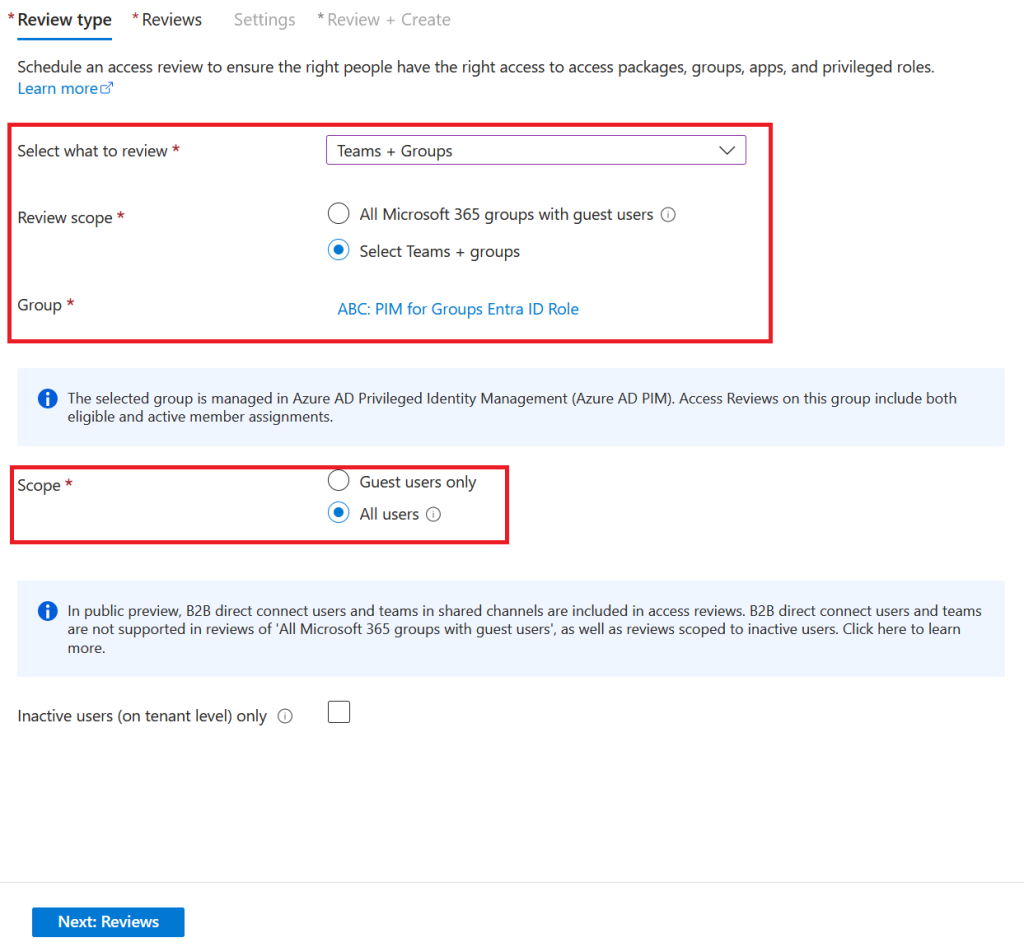
Select Teams + Groups to review
As we want to target a specific privileged group, choose Select Teams + groups and choose the appropiate group from the pop-up menu
Next, we are going to select All users as we want to review all members of this group
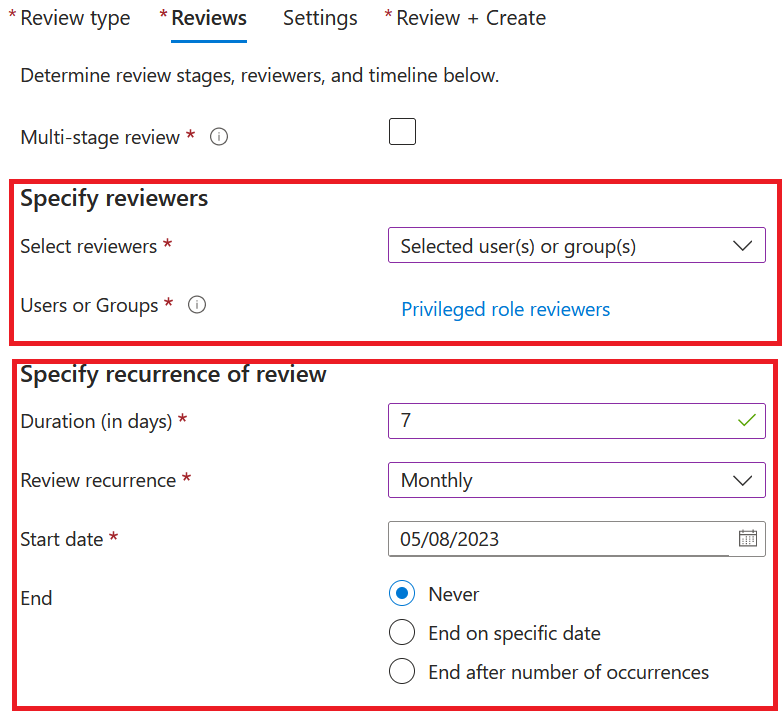
We now need to decide the reviewers. You have 4 options here:
- Group owners
- Selected users or groups
- Users review their own access
- Managers of users
We choose Selected users or groups and choose the responsible for our IAM team to review privileged access
Set duration to 7 days or what you like
Review recurrence can be either one time, weekly, monthly, quarterly, semi-annually or anually
Start date is whenever you want, and as we always need to stay on top with least privilege, our end date is never in our case
On settings pane, if reviwers don’t respond, choose Take recommendations
NB: The recommendations is to remove users if no sign-in has occoured within 30 days
As recommendations is choosen, No sign-in within 30 days needs to be checked.
On advanced settings, choose justification, e-mail notifications and reminders. Additionel content for review e-mail is optional.
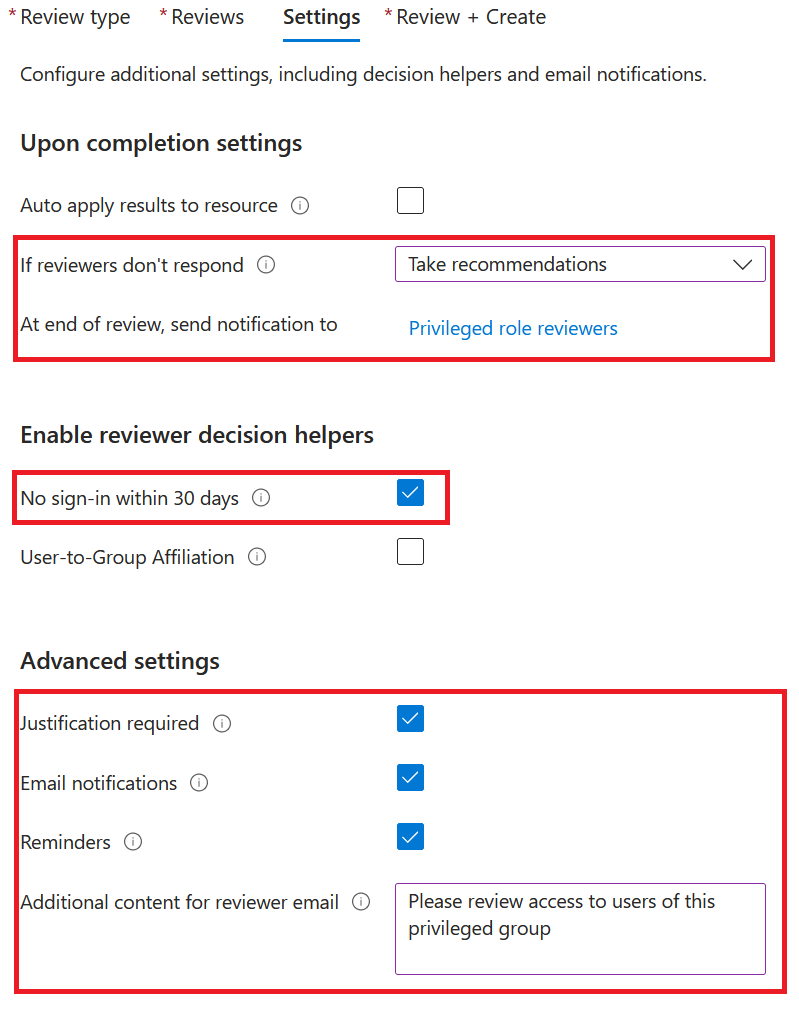
Next, review and create the access review
Step 2 – Review access
After the access review is created and active, Microsoft proceeds a mail to all reviewers
Click Start review
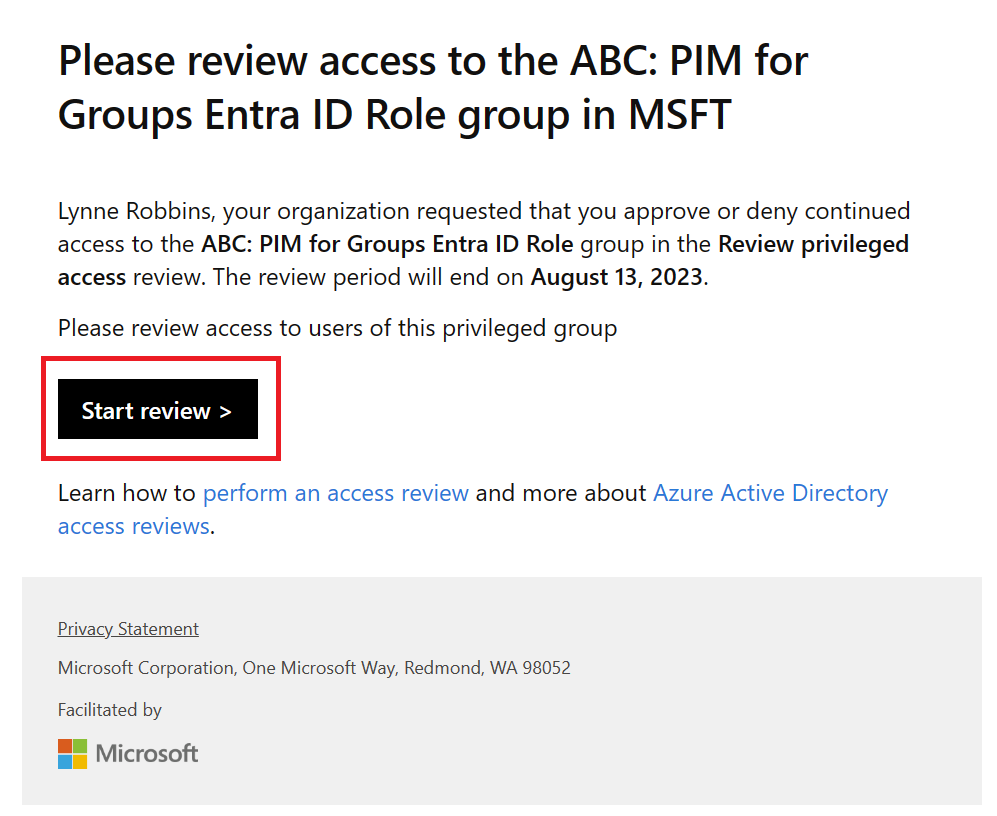
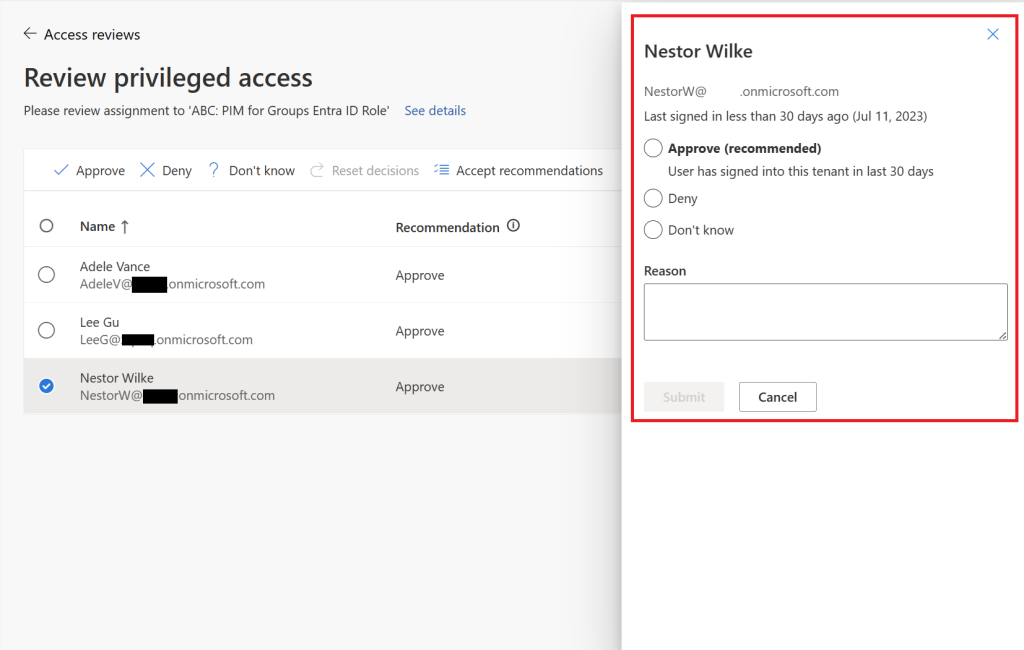
You’ll get redirected to http://myaccess.microsoft.com where you as a reviewer need to review the users assignment
Last, you can as an administrator verify if the reviewers have decided if the users are getting approved, denied or unsure
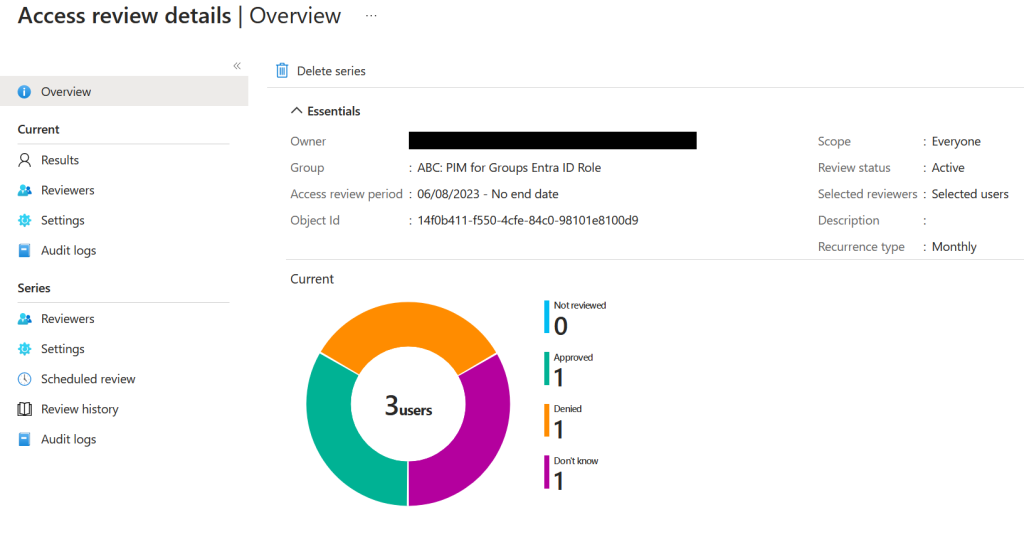
NB: It is very important to mention, when configure access reviews, users whom getting denied will not be removed immitiadtly. Users will first be removed after the review period is over, or if you stop it manually
Summarize
You have now created an access review of users, members of a privileged group. It’s very important to reduce inactive and stale users with a privileged role. Inactive and stale privilged users compose a big risk for organizations
I think administrators often oversee this feature, but nonetheless it’s very important due to access review is part of important major IT standards. I hope you will get started with access reviews by reading this blog
Feel free to reach out to me if you have any feedback or any questions about this topic
 Sebastian Henriksen