
We often hear about phishing campaigns or leaked credentials that cyber criminals tent to abuse, even though organizations invest a lot into cyber security.
Passwords are the problem
Reason why? Passwords are easy to harvest and replay, often knowledge based and last, a hassle to remember and use.
89% of organizations experienced a phishing attack in the past year*
*HYPR, 2022 State of Passwordless Security Report
Passkeys are here to help
Recently, Microsoft announced that from January 2024, they will support device-bound passkeys stored on computers and mobile devices in public preview in addition to existing FIDO2 Security Key.
The essence of passkeys, is that it replaces passwords which means you can call passkeys for passwordless authentication. Because passkeys replaces passwords and designed to not share secrets, passkeys are also a phishing resistant authentication method, win-win. In a more technical explanation, passkeys replaces passwords with cryptographic keys stored on FIDO2 Secret Keys for now in Microsoft Entra ID, but will also, as mentioned before, soon be able to be stored on computers and phones.
You may ask, why are passkeys more safe and a better solution than the way we have been used to, with passwords logins and a second factor solution?
As stated in the top of the post, it is often seen passwords are reused or found in database breaches due to phishing attacks and credential stuffing attacks.
Second factor authentication helps in some kind, but the most used second factor as one time passwords (OTPs) and phone approval are both insecure and inconvenient as these methods are also a subject to phishing attacks at scale today.
With passkeys, you now have a primary factor based on FIDO credentials which is more secure than the combination of passwords together with either OTPs or phone approvals
How does passkeys work
So the way passkeys works, is that a user are trying to sign in to an application or website that supports passkeys. When the user is at the login page, the user will have the option to login with passkeys instead of the more unsecure “username+password” method. The application or website now asks you to sign-in with either biometric such as fingerprint or facial recognition, a PIN or swipe pattern. And by signing in that way, you have now signed in with a passkey as authentication method.
Many think of passkeys as a digital key card. Passkeys are based on Web Authentication API security standards using public key cryptography for access and does only work on the respective device they are up on which means they are unique.
Adopting the technology
Since 2021, Microsoft Entra ID have officially supported phishing resistance and passwordless authentication methods with FIDO2 Security keys and with the extend in January 2024. I think now the right time to start adopting the authentication method to protect your organization even more.
Now, lets try to setup a phishing resistant sign-in method with a security key
Requirements
- Microsoft Entra multifactor authentication
- Enabled Combined security information registration
- A compatible FIDO2 Security key
- At least Authentication Policy administrator
- Windows 10 version 1903 or higher to support WebAuthN
To use security keys for logging into web apps and services, the browser must support WebAuthN protocol. Browser such as Microsoft Edge, Chrome, Firefox and Safari supports WebAuthN
Step 1 – Enable FIDO2 Security key as authentication method
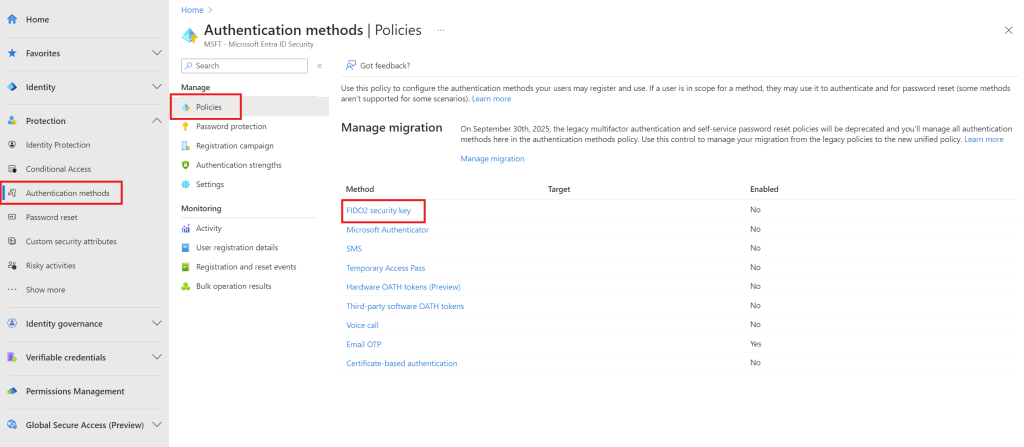
Go to https://entra.microsoft.com
Navitage to Protection/Authentication methods
Click on FIDO2 security key
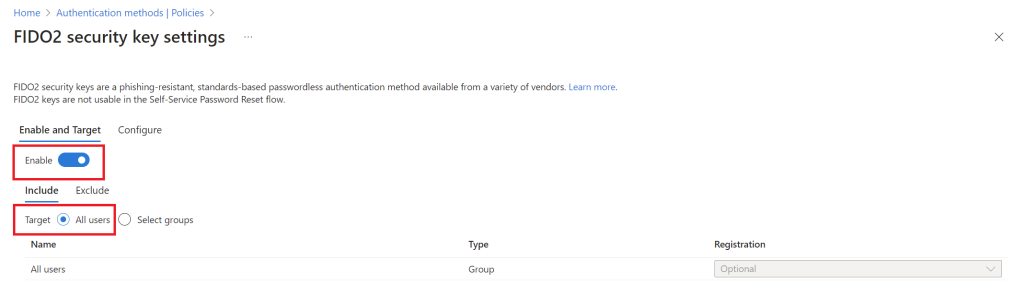
Click Enable and choose whenever you want to target all users or selected groups
In our scenario, we choose All users
On configure, determine the security key settings
In our scenario, we leave it with default settings
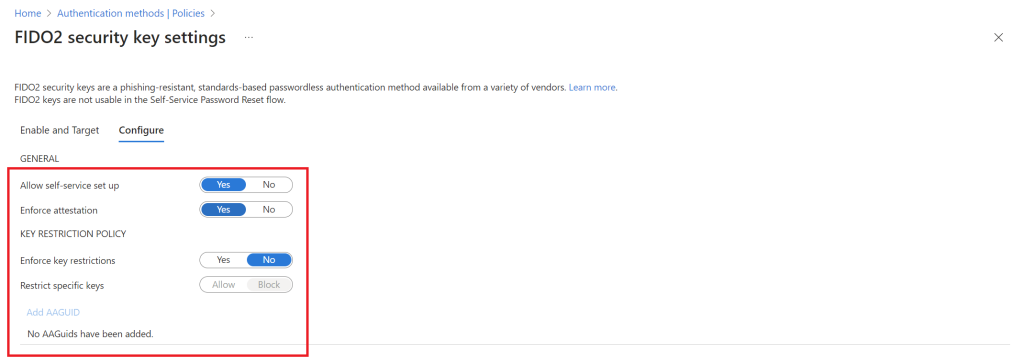
NB: I highly recommend to enforce attestation and enforce key restrictions, as it will help you have certain level of control of which security keys you can setup
Step 2 – Register authentication method
After configured the settings for FIDO2 Security keys, it is time to register a security key to a user
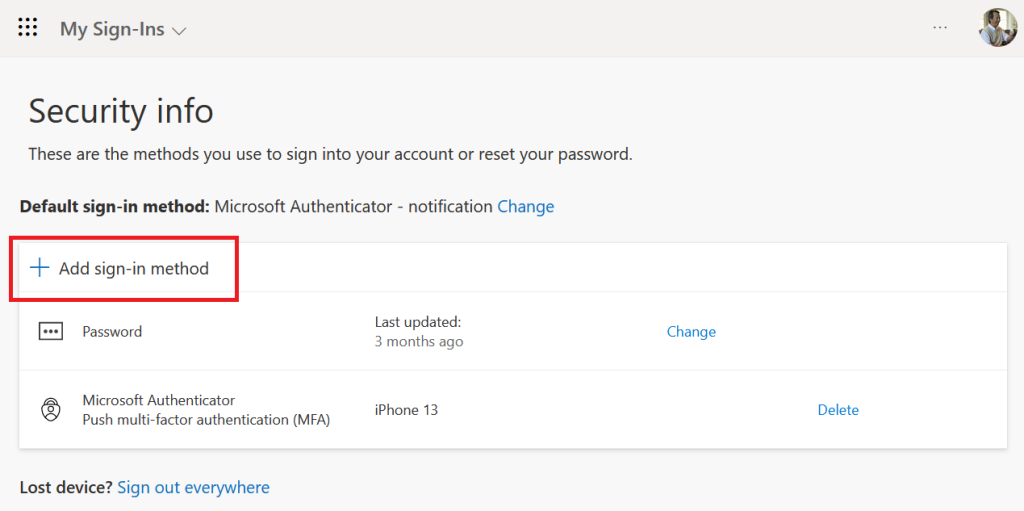
Navigate to https://mysignins.microsoft.com/security-info
Click on Add sign-in method
As authentication method, choose Security key
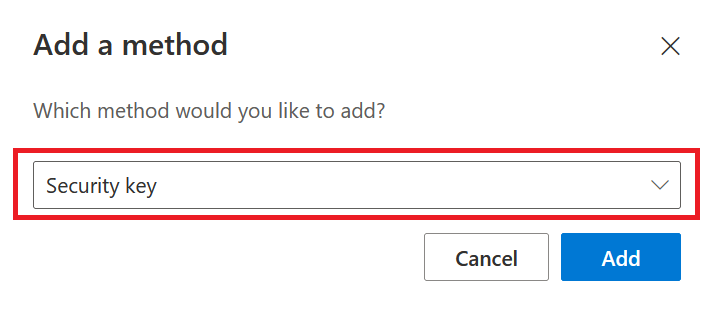
Follow the instructions to setup your specific security key
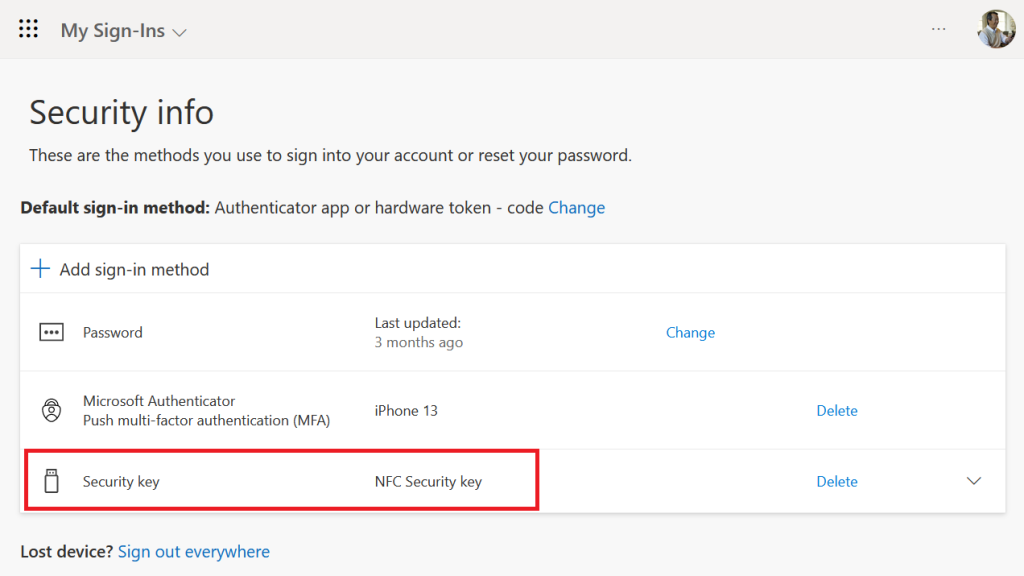
After a successful added authentication method with a security key, it will be listed as a authentication method on your Security Info tab
Step 3 – Let’s test it out
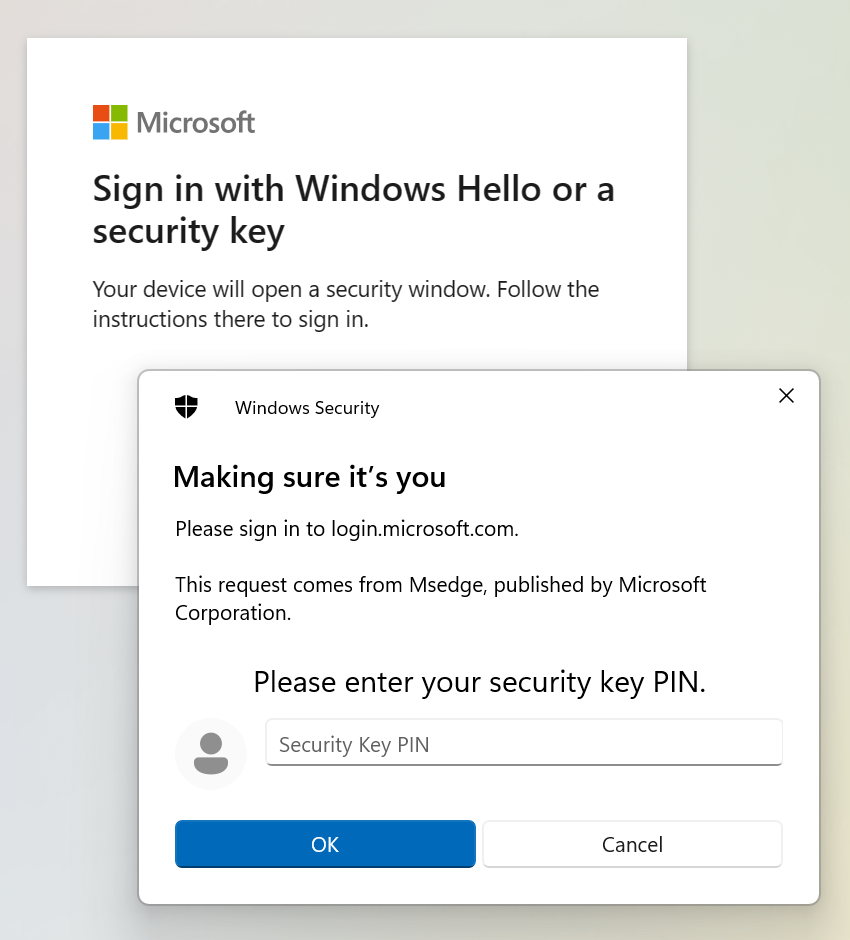
Now, when we have configured the settings of FIDO2 Security keys and added a security key as authentication method for a user, it is time to test how it works
Summarize
Expanding the availability of passkeys to laptops and mobile phones is a very welcoming feature in my opinion. From my experience, most compromises involves password abuse. So by adding passkeys, it will make it a lot more difficult for bad actors to compromise organizations in the future. Furthermore, it does not only improve the security drastically, but I would also say, it makes authentication a more smooth experience for users as they will not be in need of passwords anymore.
 Sebastian Henriksen